Open Manuscript Studio — Visual Tour
This page introduces Open Manuscript Studio through screenshots captured from the real Studio interface. The screenshots are rendered from the current application code with non-personal test data, so they show the actual React components, navigation, editor and responsive layout rather than illustrative mockups.
The interface is under active development. The current public release line is 0.3.0-beta.13. Labels and controls may move as the Studio approaches its 1.0 architecture; the screenshots show the real application UI, while newer controls added after a screenshot was captured are described in the accompanying text.
Studio also supports live manuscript collaboration. Invited authors must accept an invitation in Studio before they can edit; collaborator names and colors appear beside their live cursors. See Live manuscript collaboration for the invitation flow.
1. Sign in
Studio starts with a focused sign-in screen. A deployment can support a local Studio account and, when configured, federated identity providers such as ORCID or institutional OpenID Connect.
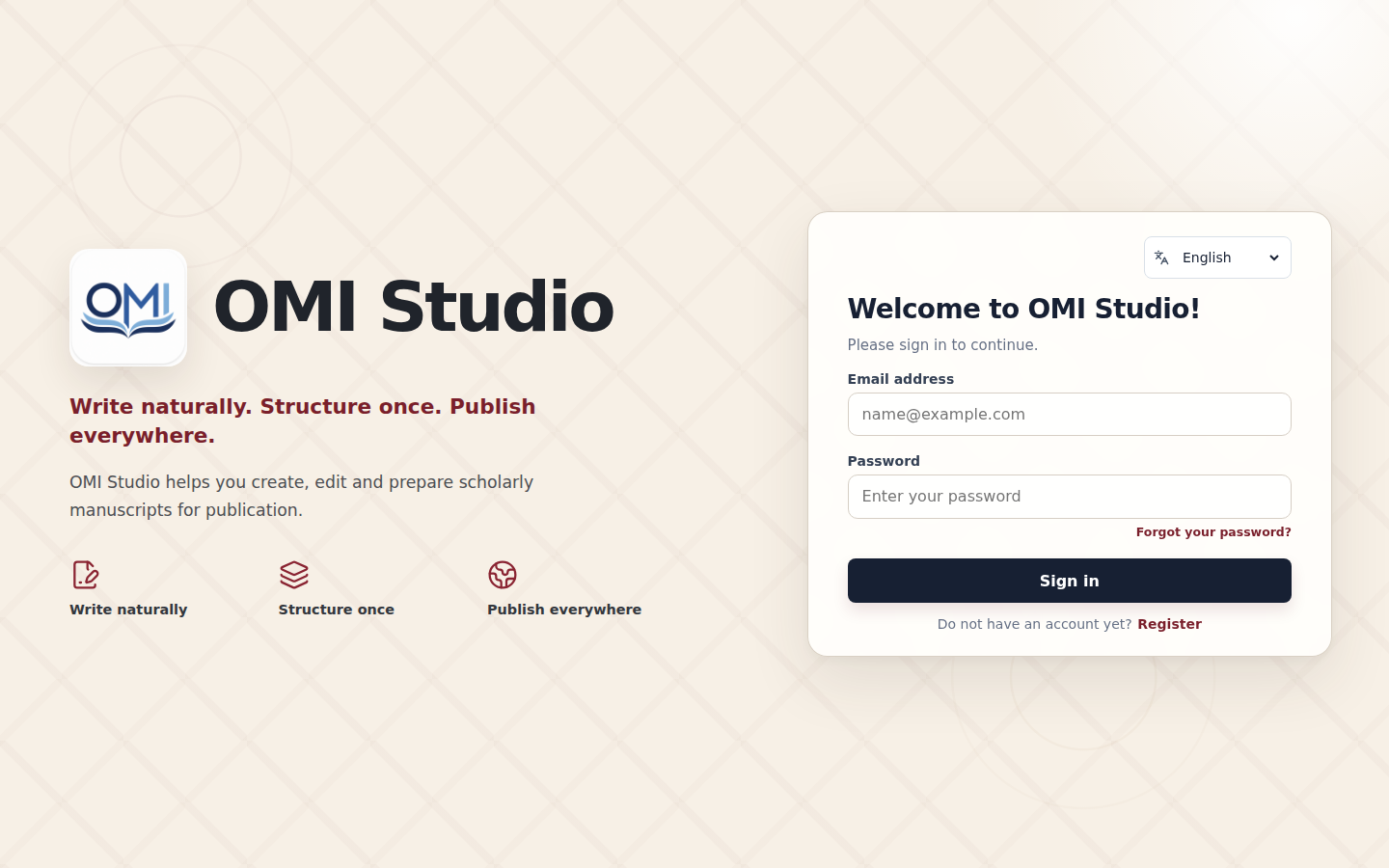
The authentication layer is separate from manuscript permissions. Signing in establishes who the user is; document, review, institutional and administrative permissions are resolved separately by the Studio server.
2. Document-free workspace
After signing in, Studio can open without forcing an empty manuscript into the workspace. The document-free state is useful when the user wants to import a document, open an existing manuscript, start a study or volume, or change account and integration settings first.
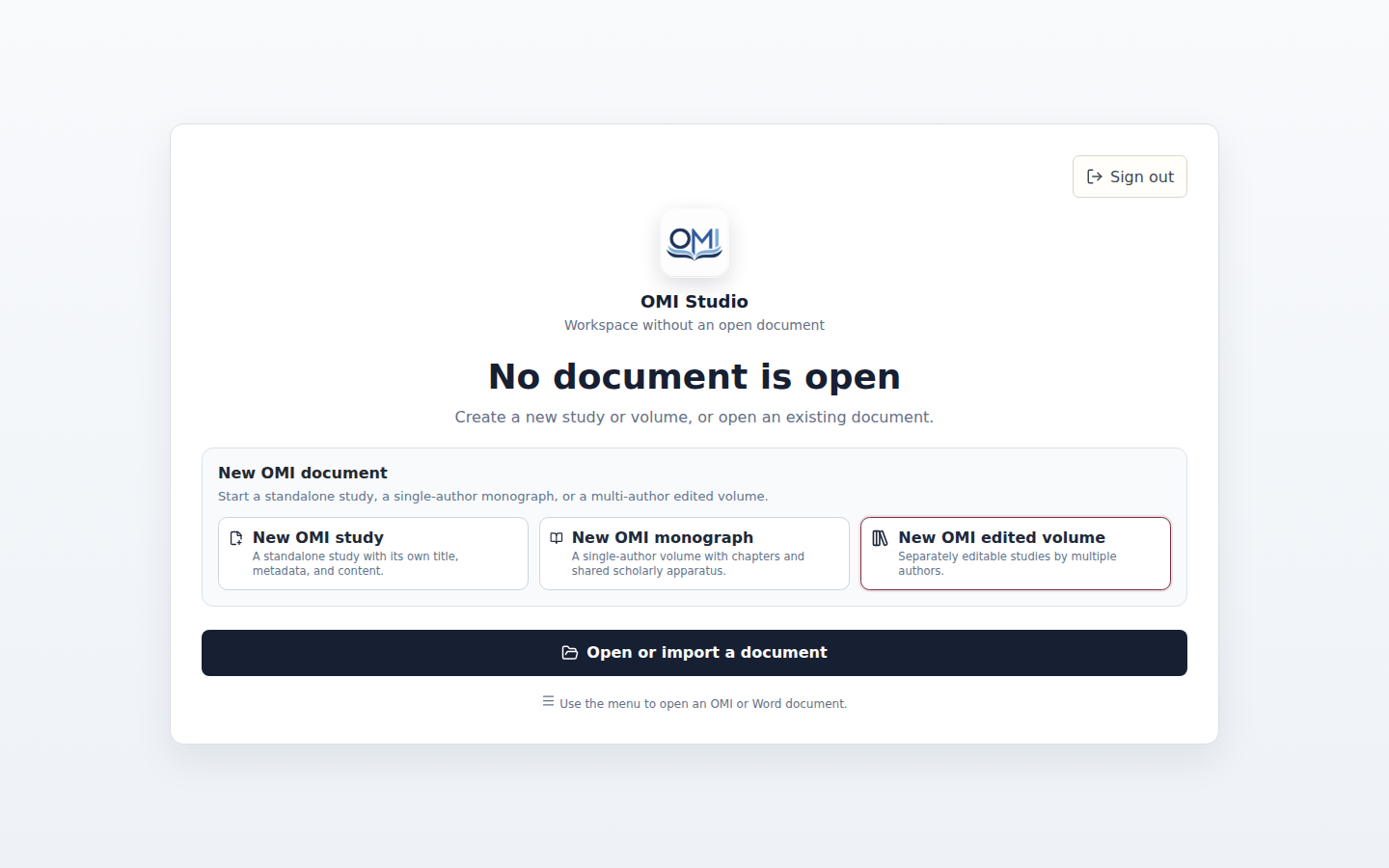
From here, users can create a new OMI study or volume and then work with the same manuscript model in the browser, desktop application or mobile client.
3. Manuscript editor
The main authoring surface combines a continuous scholarly manuscript with document structure, editing controls and manuscript metadata.
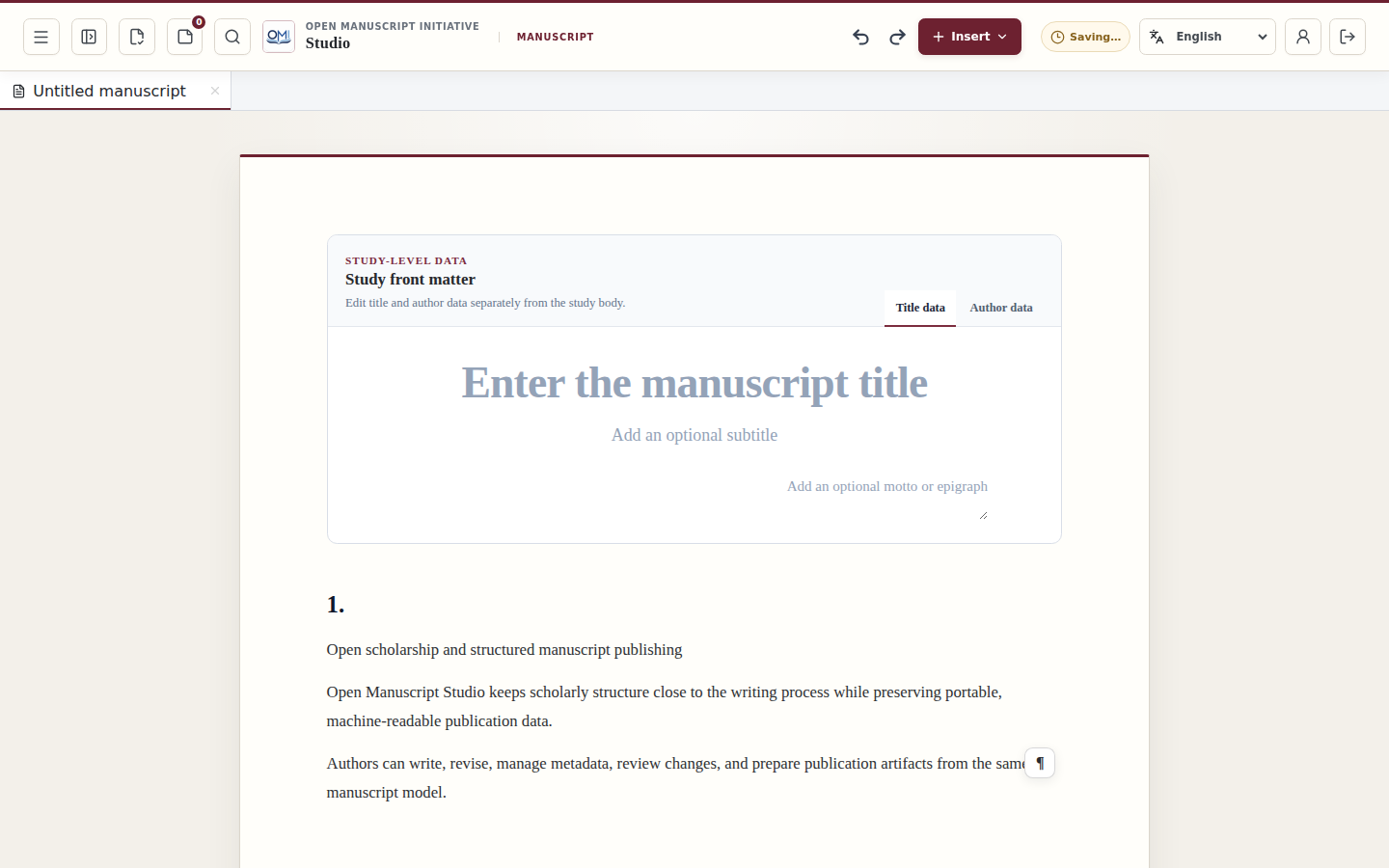
The editor is based on Tiptap and preserves OMI semantic structure rather than treating the manuscript as presentation-only rich text. This allows the same document to support editing, review, structured interchange and publication-oriented export.
Typical work in this view includes:
- writing and revising continuous manuscript text;
- working with semantic headings, notes, citations, tables and other structured objects;
- navigating the manuscript structure;
- editing author, contributor and publication metadata;
- using search, replace, proofreading and revision tools;
- preparing the same manuscript for OJS, OMP or file-based publication workflows.
4. Manuscript menu
The full-screen manuscript menu groups document-level operations without permanently taking space away from the writing surface.
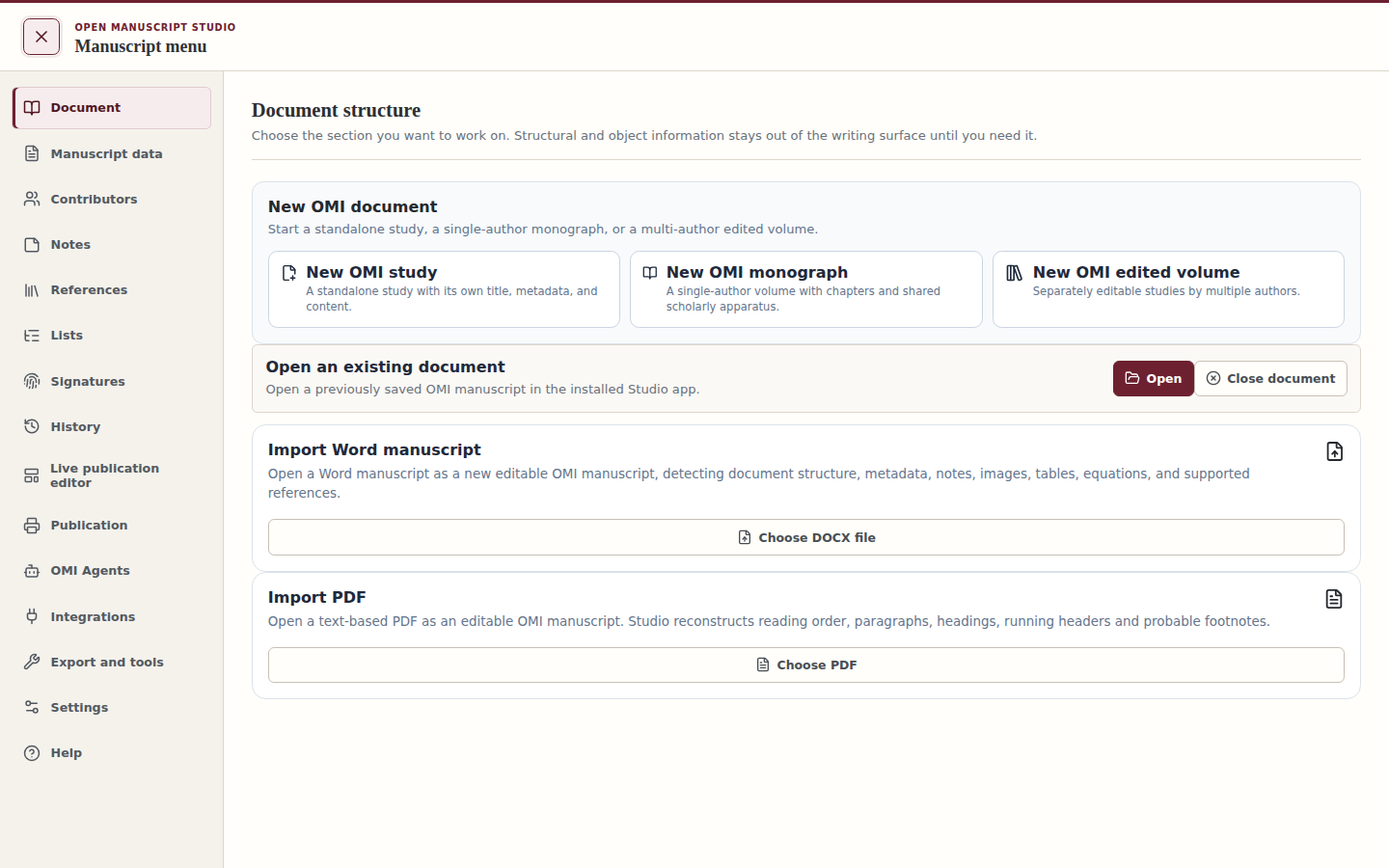
This menu provides access to manuscript-wide tools and specialized workspaces, including the live publication editor.
5. Live publication editor
The Live publication editor is a publication-oriented view of the same manuscript. It is designed for layout, proofing and publisher-profile work without separating the publication artifact from the structured scholarly source.
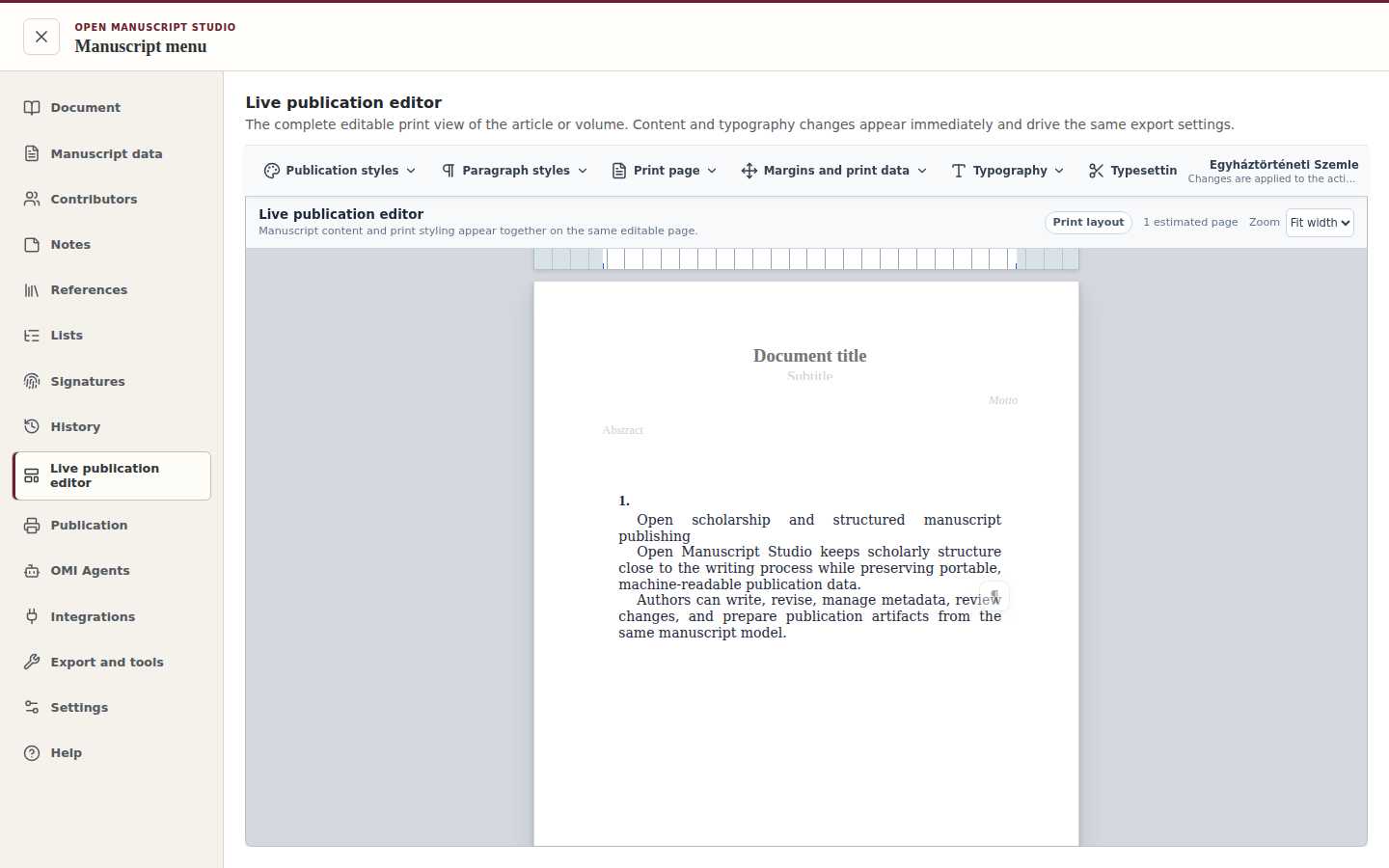
The publication layer can work with paragraph styles, publication styles, publisher profiles and proofing controls while keeping manuscript semantics separate from presentation decisions. In the 0.3.0 beta line this includes the InDesign-compatible paragraph-style system, a section ruler with tab stops and columns, text-to-table conversion, and the same Word-style zoom in both HTML5 visual and paged print-layout modes.
This separation is important for OMI: the scholarly object remains portable, while different journals, publishers or output formats can apply their own publication rules.
6. References and editorial workflow
The References workspace now separates a reusable personal reference library from the bibliography of the current manuscript. Authors can save curated bibliographic records once, reuse them in other documents, and decide which uncited works should appear in the current document's final bibliography. Cited works remain included automatically.
For DNS-verified journals and presses that do not use OJS or OMP, the Editorial workflow workspace provides a Studio-native route from submission through double-anonymous review, author revision and explicit editorial acceptance to publication. When OJS or OMP is connected, those systems remain authoritative for their own workflow state.
7. Mobile Studio
Studio uses the same application core on compact screens. The responsive interface reorganizes navigation and editing controls instead of exposing a separate reduced document model.
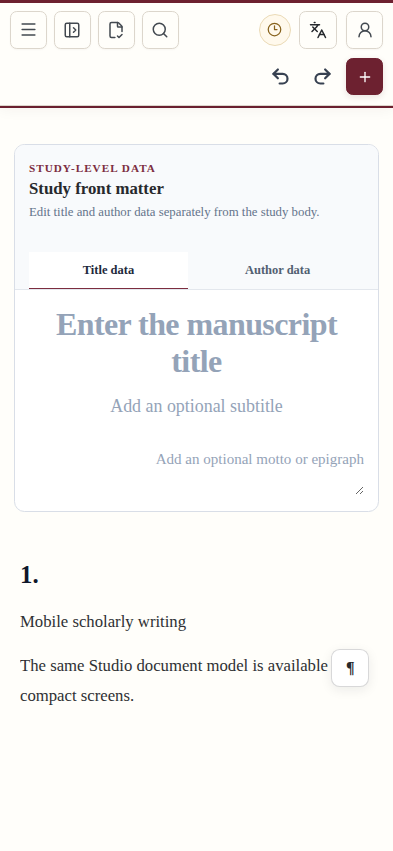
The Android application and the browser interface share the same core manuscript model. Mobile-specific platform adapters handle tasks such as file selection, native storage destinations and authentication handoff where necessary.
Research modules
Studio also provides optional research workspaces for history and archives, religious texts, critical editions, corpus linguistics, musicology, cultural heritage, social research, legal sources, and research reproducibility. See the Research Modules guide for current capabilities, storage behavior, and provider limits.
What the screenshots demonstrate
Taken together, these views show the central idea behind Studio: one structured manuscript can move through writing, editing, review, publication preparation and external publishing integrations without repeatedly rebuilding the document in unrelated tools.
Open Manuscript Studio is the reference implementation of the Open Manuscript Initiative. The implementation is used to test and refine OMI specifications, but implementation behaviour does not itself redefine the normative specification.
Try Studio
You can use the hosted web application at studio.openmanuscript.org.
Desktop and mobile distribution information is available on the Studio downloads page.
For technical implementation status, see Studio Implementation Status.